
Let clients view and pay invoices directly on your Joomla site
Seamless Invoice Ninja integration. Fewer support tickets.
Faster payments.
How it Works
Connect
Enter your Invoice Ninja API base and token.
Assign
Place the module on a protected
page for logged-in users.
Collect
Clients see their invoices and pay securely.
Feature List
Invoice list per logged-in user
View / Pay buttons (invoice invitations)
“Email me a secure portal link”
Magic Link strategy control
Simple connection test (Pro)
Responsive and minimal styling
Free
- Invoice list
- Portal login link
- Basic support
Pro
- Auto-login invite links
- Magic Link strategy control
- Connection test
- Priority support
- Roadmap access
Client Invoices for Invoice Ninja - User Guide (Free Edition)
1. Requirements
Before installing:
Joomla: 4.x or 5.x
Invoice Ninja: v5 (self‑hosted)
API access enabled in Invoice Ninja
A client’s email in Invoice Ninja must match the Joomla user’s email
2. Install the Module
Log into your Joomla Administrator.
Go to System → Install → Extensions.
Upload the file:
mod_ctc_invoiceninja_invoices.zipWait for the “Installation successful” message.
The module is now installed but not yet visible on the site.
3. Get Your Invoice Ninja API Details
In your Invoice Ninja v5 instance:
Sign in as an admin.
Go to Settings → API Tokens.
Click New Token (or use an existing one dedicated to Joomla).
Give it a name like Joomla Client Invoices.
Copy the Token value somewhere safe.
Also note your base URL, e.g.:
https://billing.example.com
https://invoices.yourdomain.com
You’ll need both the base URL and the token in Joomla.
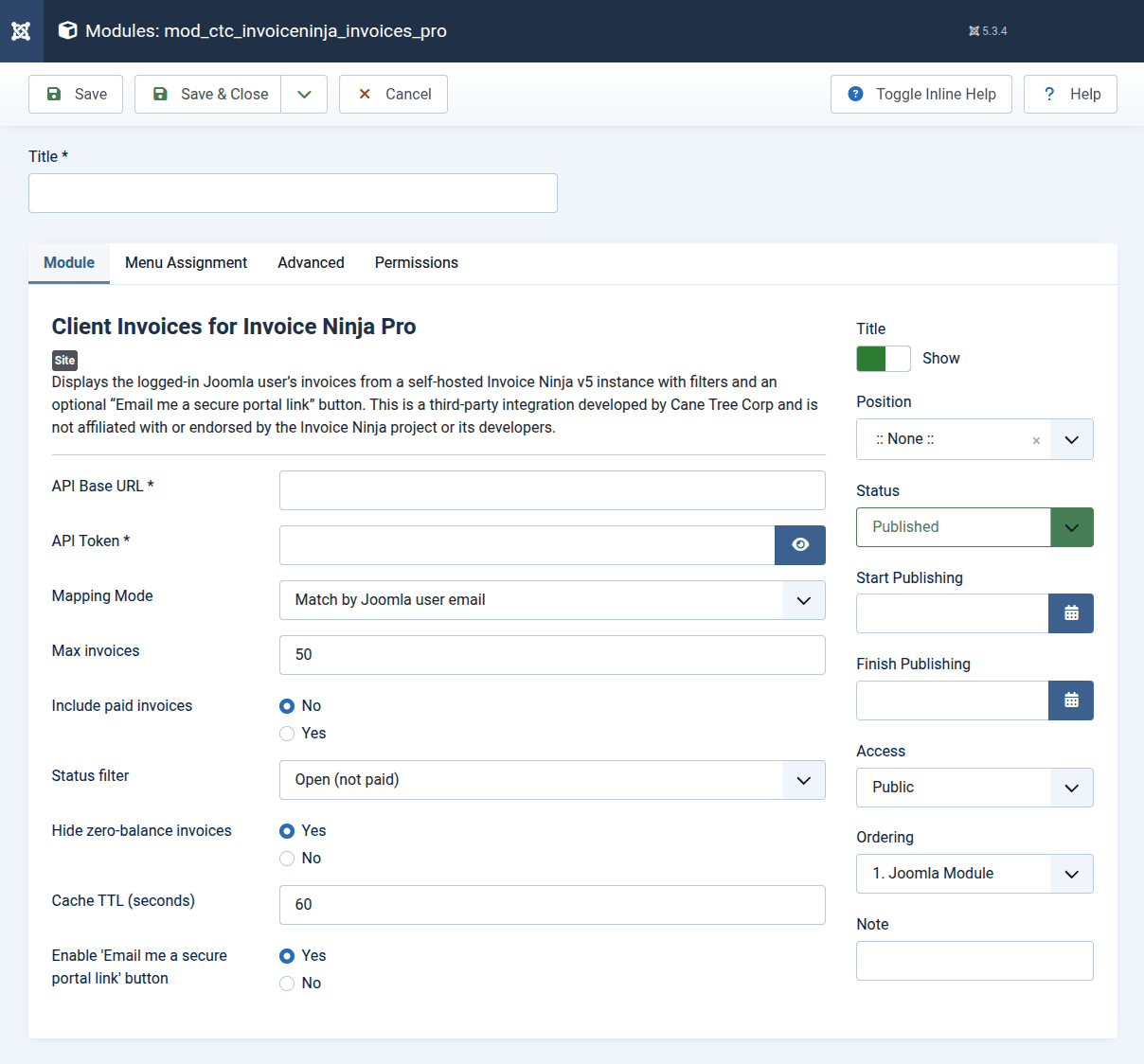
4. Configure the Module in Joomla
In Joomla admin, go to Content → Site Modules.
Find “Client Invoices for Invoice Ninja” in the list and click it to edit.
Under the Module and Options tabs, configure:
4.1. Basic Settings (Options tab)
API Base
Enter the base URL of your Invoice Ninja v5 instance, e.g.:
https://invoices.example.comAPI Token
Paste the API token you created in Invoice Ninja.Invoices per page (per_page)
How many invoices to fetch and display at once.
Default: 50 (recommended for most sites).Hide zero balance invoices (hide_zero_balance)
Yes — hide fully‑paid invoices.
No — show all invoices.
Cache TTL (seconds) (cache_ttl)
How long the module should cache API responses for the current user.0 = no caching
60 seconds is a good starting point.
Show upgrade link (show_upgrade)
Yes — display a small “Upgrade to Pro” notice in the module footer.
No — hide it.
Click Save when done.
5. Publish the Module
You have three common options:
Assign it to a module position on a menu item (standard way).
Load it inside an article using Joomla’s {loadmodule} tags.
Insert it via a page builder using their “Display/Load Module” element.
You can mix these as needed.
5.1 Standard method: assign to a module position
In the module edit screen (Content → Site Modules → Client Invoices for Invoice Ninja):
Set Status to Published.
Choose a Position that exists in your template, e.g. component, main-top, sidebar etc.
Go to the Menu Assignment tab:
Set Module Assignment to Only on the pages selected.
Select the menu item(s) where you want the invoices to appear — usually a menu item called “My Invoices” or “Billing Portal”.
Edit that menu item in Menus → [Your Menu]:
Set Access to Registered (or higher) so only logged‑in users can see invoices.
5.2 Using Joomla content: {loadmodule} / {loadposition} tags
If you want the invoice list inside article content (for example, on a page with extra instructions or FAQs), you can load the module with Joomla’s content plugins.
Step 1 – Check that the content plugin is enabled
Go to System → Plugins.
Make sure Content – Load Modules is enabled.
Step 2 – Choose how you want to load the module
You can use either:
– by module ID, or
– by module title, or
– by position.
The most reliable is by ID.
Find the module ID:
In Content → Site Modules, look at the ID column for your module (e.g. 123).
Example: load by module ID
In your Joomla article:
Where 123 is the actual ID of Client Invoices for Invoice Ninja.
Important tips:
The module still uses its own access level.
Make sure the module’s Access is set to Registered so invoices are not visible to guests, even if the article is public.You can set Module Assignment → On all pages for this module if you only ever load it via {loadmoduleid}; the tag itself controls where it appears.
5.3 Using a page builder (SP Page Builder, etc.) with “Display Module”
Many page builders provide a “Module”, “Joomla Module”, or “Load Module” element. The exact wording depends on the builder, but the idea is the same.
The workflow is roughly:
Create and configure the module as usual:
Status: Published.
Access: Registered or higher.
You can set Module Assignment to On all pages or to No pages depending on the builder:
If the builder lets you explicitly choose modules in its UI, it’s often fine to set Module Assignment to On all pages.
The module will only actually render where the builder places its “Module” block.
In your page builder editor:
Edit the page where you want invoices to appear.
Add a new element/block of type Module / Joomla Module / Display Module.
In that element’s settings, choose Client Invoices for Invoice Ninja from the list.
Save the builder page.
Security note:
Make sure the page itself has an access level of Registered (or higher), and the module’s Access is also Registered.
That way, even if the builder template leaks the module container, the data is only shown to logged‑in users.
6. How Invoices Are Matched to Joomla Users
The module looks up invoices in Invoice Ninja by client email.
It uses the Joomla user’s email address.
It finds the Invoice Ninja client record with the same email.
It then loads invoices for that client and displays them.
To make this work:
Each Joomla user should have the same email as their corresponding client in Invoice Ninja.
If a user has no matching client in Invoice Ninja:
The module will show an appropriate “No invoices found” message (or an empty list).
7. What Clients See
On the “My Invoices” page, logged‑in users will see:
A table of invoices:
Invoice number
Date
Amount
Balance
Status (Paid, Sent, Draft, etc.)
A View / Pay link for each invoice (when available).
Clicking View / Pay opens the corresponding invoice in your Invoice Ninja client portal (in a new tab), where the client can:
View the full invoice
Download or print
Pay online using gateways you’ve configured in Invoice Ninja
8. Security & Best Practices
The module never stores your Invoice Ninja token in the browser; it’s only used server‑side.
Make sure:
The “My Invoices” menu item requires Registered or higher.
You are using HTTPS on both Joomla and Invoice Ninja.
For added safety, consider using a dedicated API token for this module with limited scope (if/when Invoice Ninja adds granular API permissions).
9. Troubleshooting
Invoices are not showing for a user
Confirm the user is logged in to Joomla.
Check that the module is published and assigned to the correct menu item.
Verify that the Joomla user’s email equals the client’s email in Invoice Ninja.
Check that Invoice Ninja has invoices for that client.
“Could not connect to Invoice Ninja” or blank list
Double‑check the API Base URL:
Include https://
No trailing / (unless your site requires it exactly).
Confirm the API Token is correct and not expired.
Make sure your server can reach the Invoice Ninja domain (no firewall block).
Try setting cache_ttl to 0 while testing.
Links go to the wrong domain or 404
Ensure the API Base exactly matches your real Invoice Ninja URL.
In Invoice Ninja, confirm that:
The Client Portal is enabled.
The invoice has been sent and has a valid invitation link.
10. Upgrading to the Pro Version
The Pro edition adds:
Auto‑login invitation links
“Email me a secure portal link” button
Magic Link strategy control
Simple connection test tools
Priority support and roadmap access
You can learn more and purchase Pro from the Cane Tree website:
Pro access:
Client Invoices for Invoice Ninja Module Pro Access (Membership section on canetree.com).
The Free and Pro versions are separate Joomla modules; you can install Pro alongside Free and migrate at your own pace.